Malware detection is a process of identifying malware, suspicious activities and prevent them from harming any system,device or network. It is a core part of Cybersecurity. As in order to have secured communication we need to know how things are actually happening and at the same time we should know what to do and how to do analysis of any suspicious activity. This blog is to show how to prepare your device for analyzing suspicious file and discuss about the observation that is to be seen from the malware detection tools.
Why is it necessary ?
Better understanding of malware detection can help us to make the best use of cybersecurity implementation. To know which file might be infected by suspicious malware , first thing we need to know the protocol of analyzing a suspicious file. This action can help us to determine whether it is safe to download the file in host device for working purpose. Also in this advancing period , we should be more aware about what is happening behind our concern.
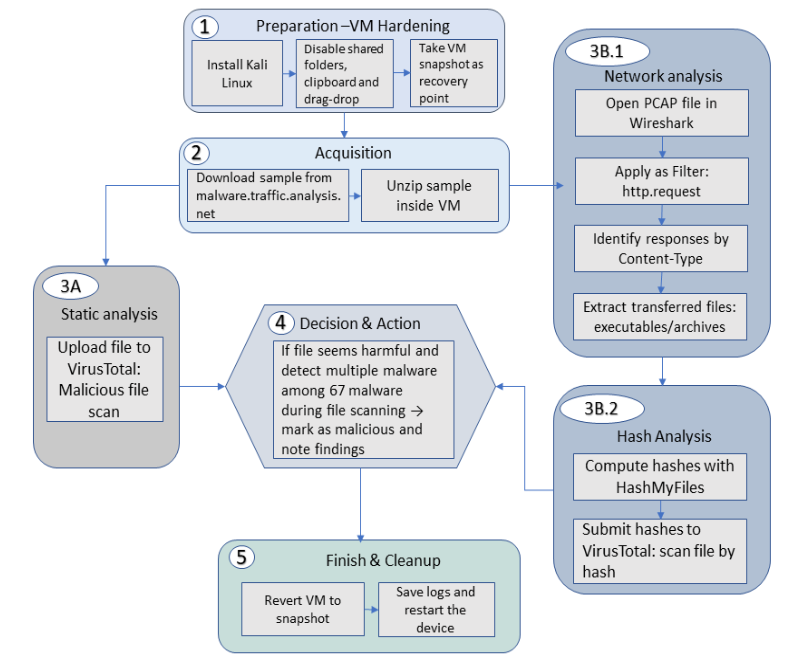
End-to-end workflow for safe malware traffic analysis with VM, VirusTotal, Wireshark, hashing, and snapshot restore.
Tools: Wireshark + VirusTotal; no sandbox detonation in this tutorial
Legal: Analyze only data you are authorized to use; respect local laws/policy
1. Prepare a safe analysis VM (VirtualBox + Kali)
Goal: An isolated, resettable lab that won’t leak data to your host.
Install VM and Kali Linux on VM
Prepare virtual machine for malicious file analysis
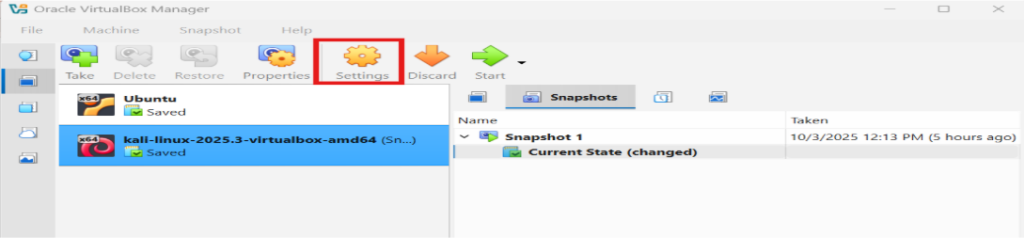
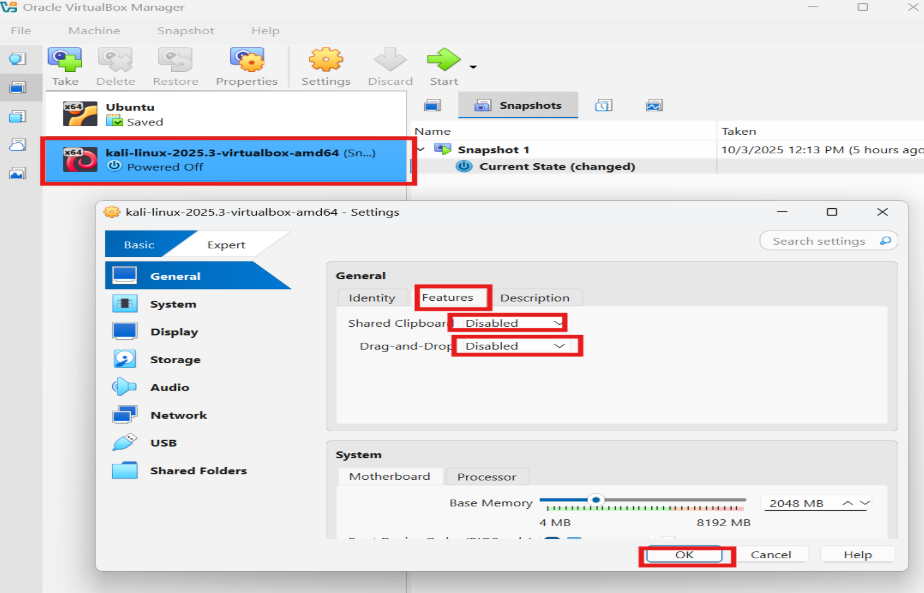
Now it’s time to prepare our virtual machine environment for safely file analysis. We should disable Drag-and-Drop and Shared Clipboard and also delete Shared folder if there is any.First go back to the oracle virtual box ,select kali linux,right click on that and some option will be appeared.You can choose settings from that or you can select select from the upper navigation bar shown with red mark.
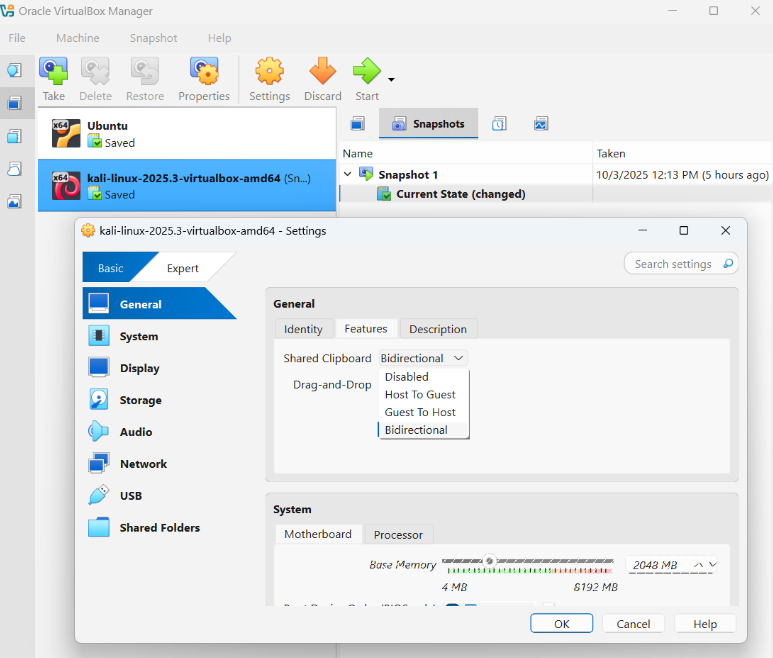
Then an interface like below will be appeared.Select general -> Features. Then you will get to see the desired two options: “Shared clipboard” and “Drag-and-Drop”. Both of these options have a drop down option. By default both are set to “Bidirectional” .Select “Disabled” for both and click OK.
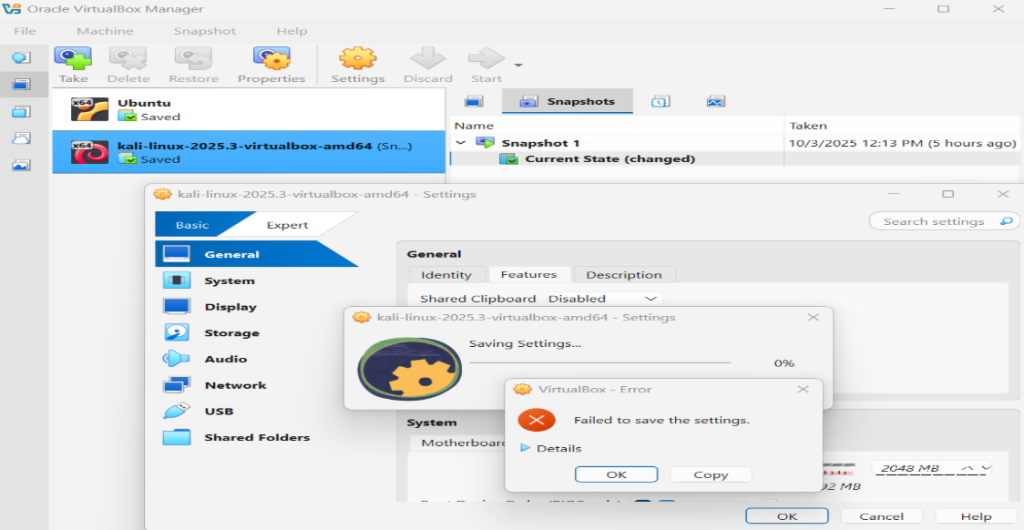
Basic error while saving the setting and it’s solution:
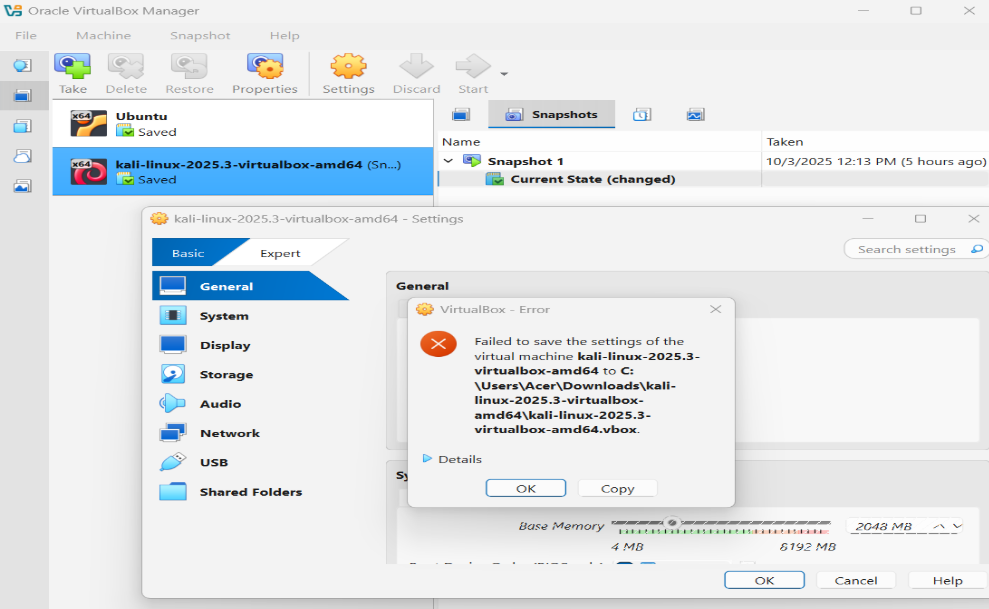
Now here you will see an error which is showing that failed to save the settings.
How to Solve this?
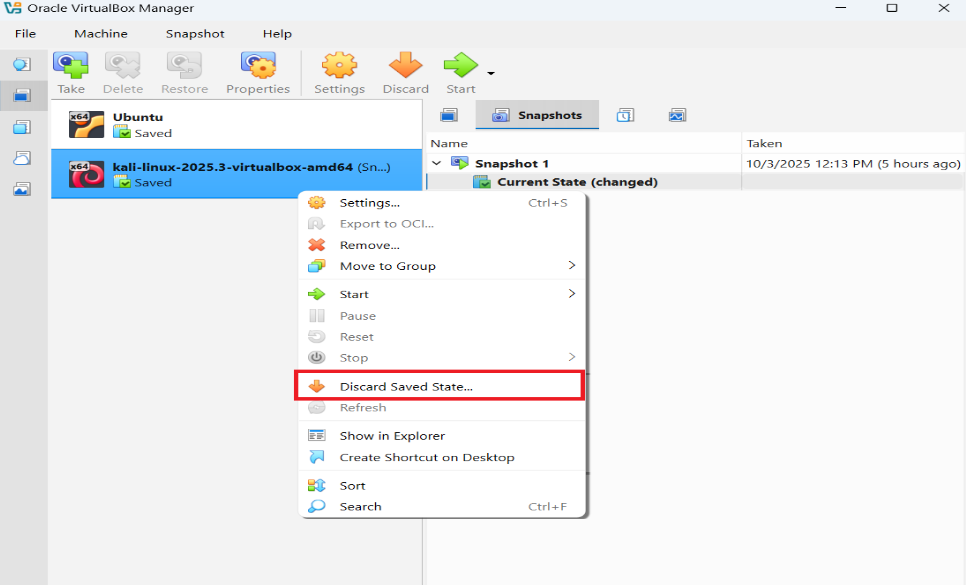
Virtual machine doesn’t allow to change the settings while the machines are running or in saved state. So to change any kind of settings,at first we need to stop if the machine is in running state and if it is in saved state then we have to discard the saved state as shown below.Right click on the machine and these options will appear then select Discard Saved State and we are good to go.
Now repeat the same process for disabling both option and this time no error will occur.
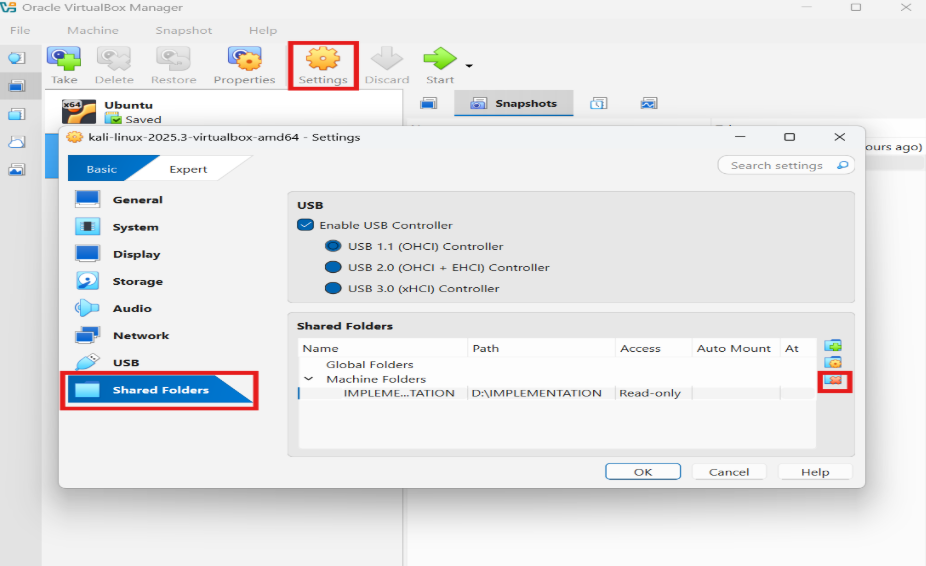
Discard Shared folders
We also need to discard shared folder if there is any.Select Shared Folder option. If there are any shared folder like the picture,select that folder and click the delete button marked as red.
2. Snapshot for safety purpose
At this point we can take snapshot of the current vm state to capture the host environment. We can restore this state after completing our file analysis by this snapshot so it is quite a handy feature. Go through online resources to learn how to take snapshot in VM in and restore them.
Go to Malware-traffic-analysis.net and download any .pcap.zip file for analysis. This site contains so many demo file for this kind of operation and experiment.
VirusTotal scan result (Without wireshark packet analysis):
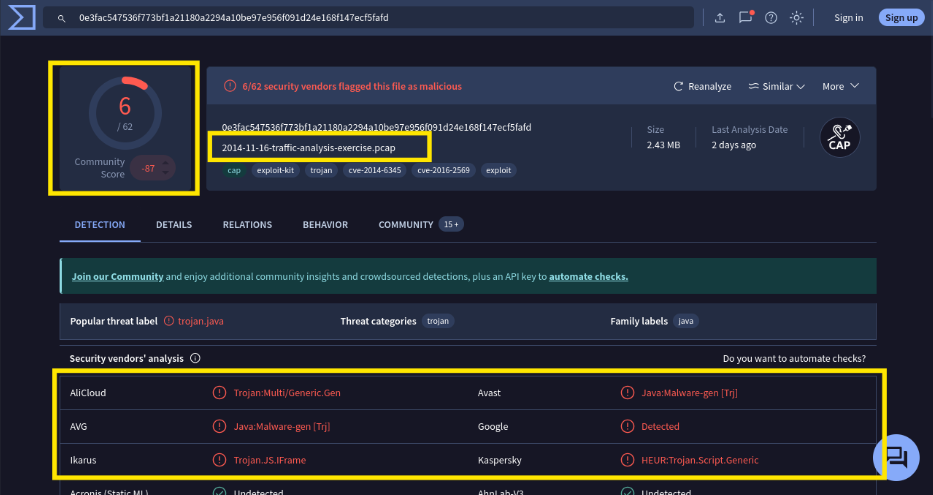
After downloading .pcap.zip file, go to this website or type www.virustotla.com .Then upload the file in the virusTotal and see scan result. For reference,here we are analyzing this file. You can download this file directly from the given link. After scanning this file by virusTotal,here is the scan result :
This the analysis result of my previously downloaded file and virustotal can detect 6 malware among 62 other malware.This is just the detection result. We can also see other parameters like details, relations,behavior of this file.
4. Another way for analyzing file through wireshark( Where wireshark meets virusTotal)
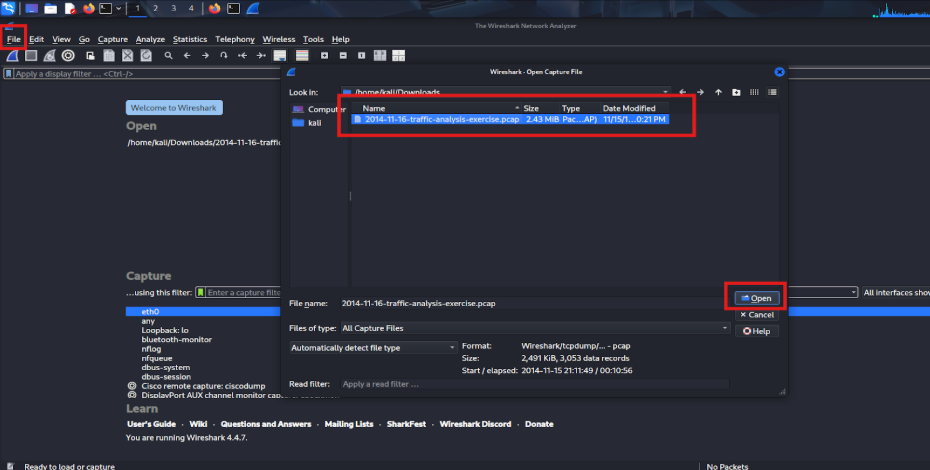
First you need to upload the pcap file in wireshark.Download and open wireshark in your vm Kali linux window.
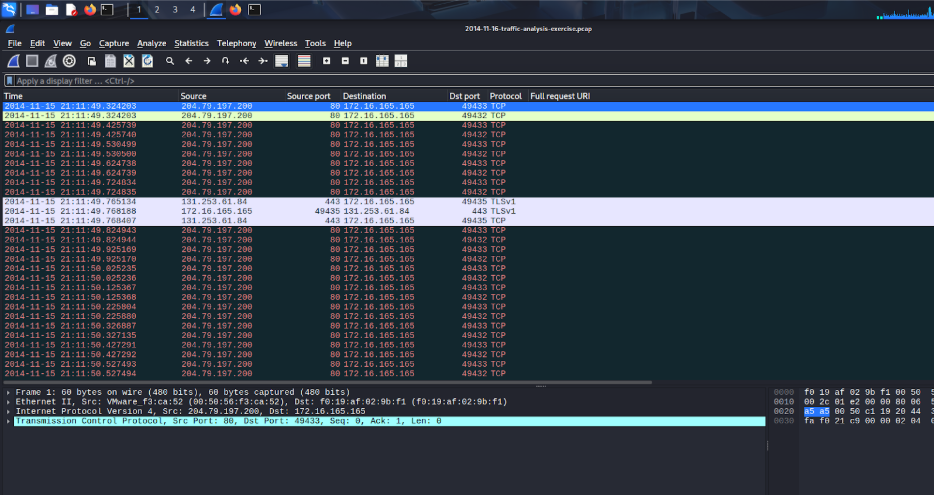
Click File -> Open ->Select .pcap file -> Open. Follow the red marked steps.After that an interface will appear like this.
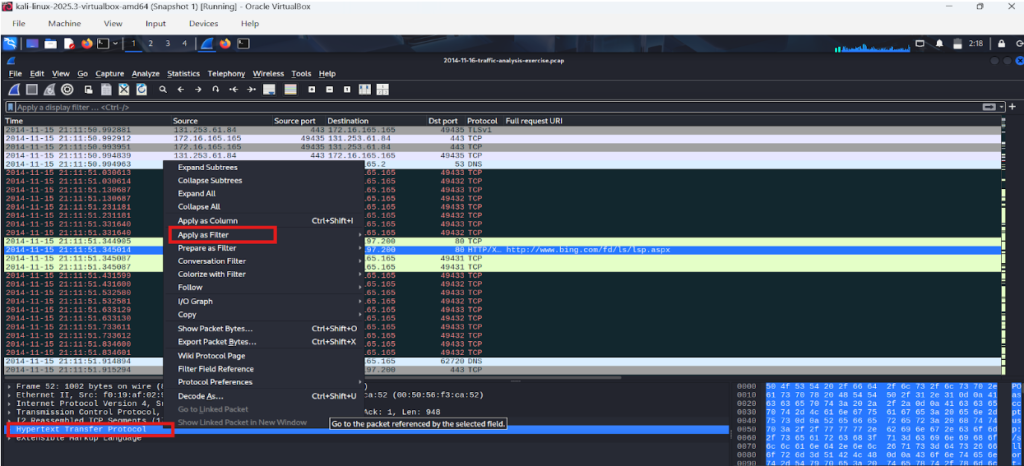
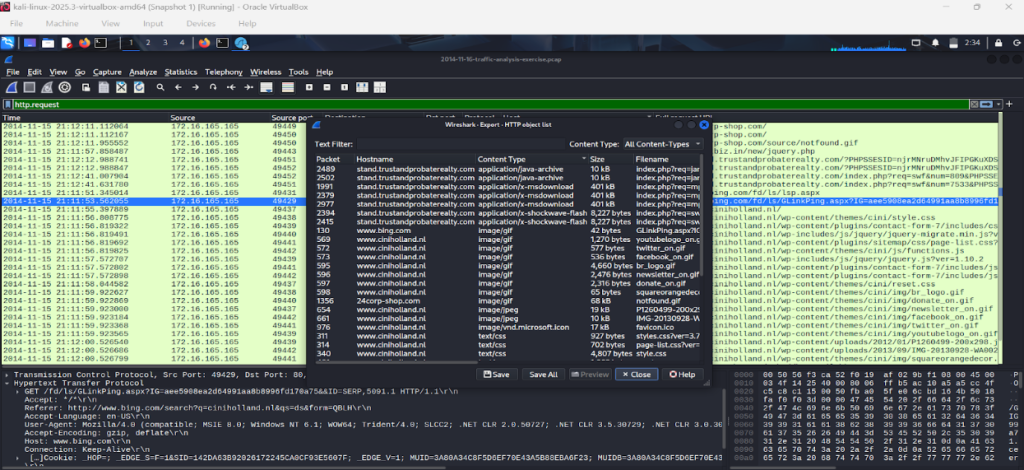
Now we need to do some filtering as for now we will be working with http protocol packet transmission. What we can do is to apply http.request as filter to shorten the packet transmission history in order to narrow down our work hassle.
So right click on the Hypertext Transfer Protocol and then select apply as filter.
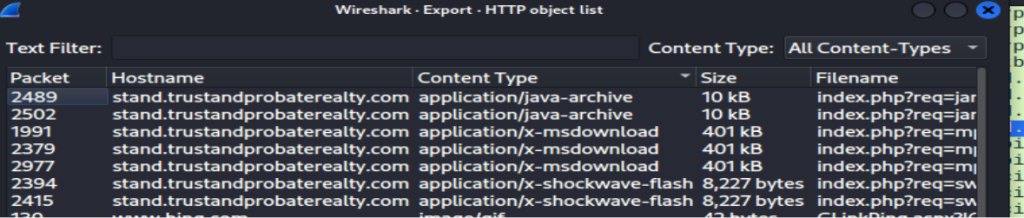
This is the interface after applying filter http.request just to see the GET and POST method responses. In the bottom, if we expand the drop down button of hypertext transfer protocol we can see the host name which we also apply as filter.Now we need to see the content type of hostname to find out the suspicious file.
5. Malicious file prediction(Indicators that helps to identify malicious file):
We consider these files as suspicious because these are application file which is executable And as we know mostly executable file may contain malicious code. “application/java-archive” (.jar), “application/x-msdownload” (.exe/.dll) and “application/x-shockwave-flash” (.swf) are executable or code-based files, which makes them suspicious. A .jar file can run Java programs, .exe or .dll files can execute directly on Windows and may contain malware, and .swf (Flash) files are outdated and often exploited. In short, unlike images or text files, these can be executed and that is why they are risky.
Computing Hash:
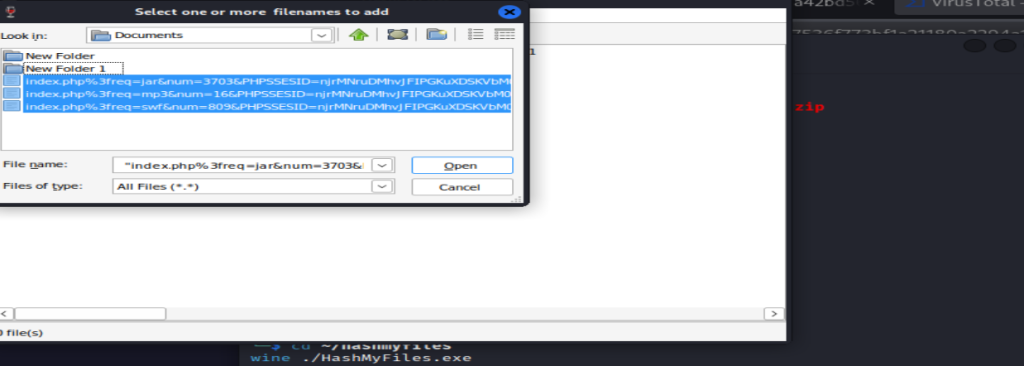
Now we need to compute the hash of this file to upload in virustotal and see the scan result.For this we can download three different files .exe,.jar and .swf ,We just need to right click on the file and save to our directory. Then download HashMyFiles in linux via wine and open it to upload the saved file and calculate it’s hash.
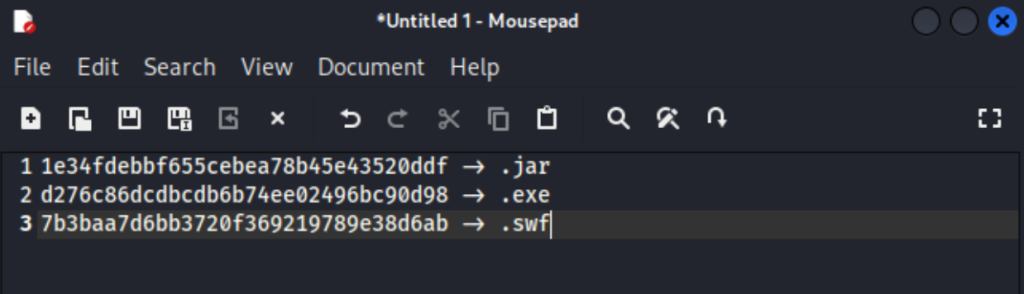
Select the files and right click and then select Copy MD5.Now we have have for three different files and we can upload any of them in the virustotal.
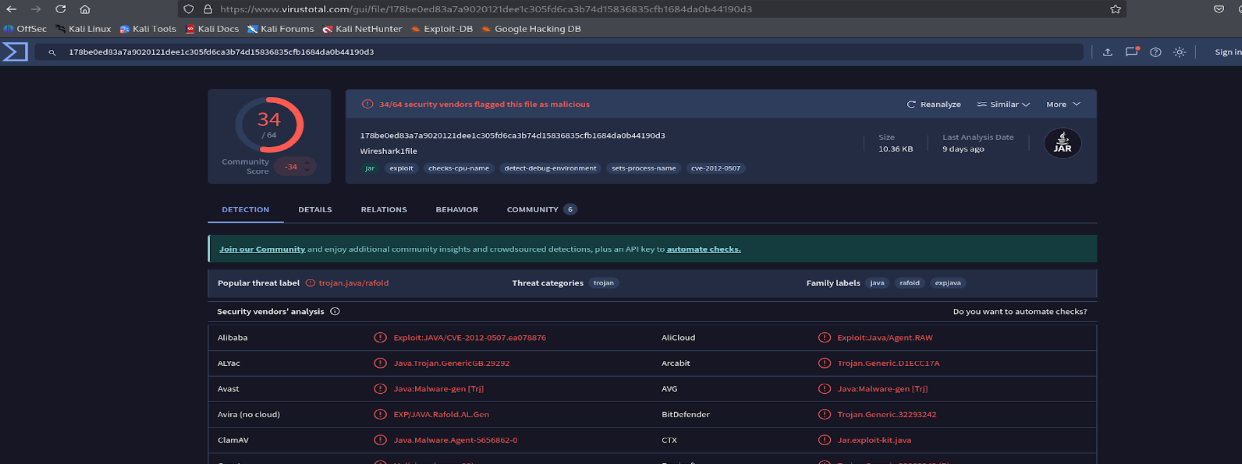
VirusTotal Scan result with hash
Now we can see that it can detect 34 different malware from just a specific .jar executable file.
So maybe wireshark is a more reliable approach for analyzing a malicious file rather than just uploading a direct pcap file in virustotal.
6.Discussion
So maybe wireshark is a more reliable approach for analyzing a malicious file rather than just uploading a direct pcap file in virustotal.
This is how we can check whether a file is malicious or not. By combining static scanning through VirusTotal and dynamic traffic analysis using Wireshark, we can better understand how suspicious files behave and communicate. Such an approach not only enhances malware detection accuracy but also strengthens our overall cybersecurity awareness and defense strategies.